
How to setup IPTV on Fire TV Stick
1: From the home screen of your device, hover over the Find option.
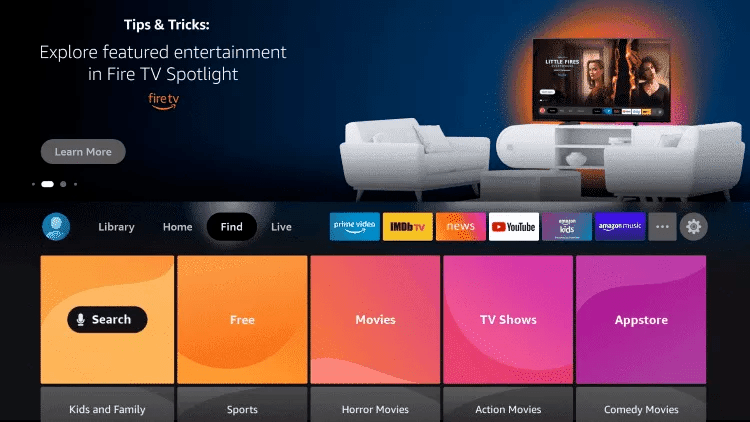
2. Click Search.
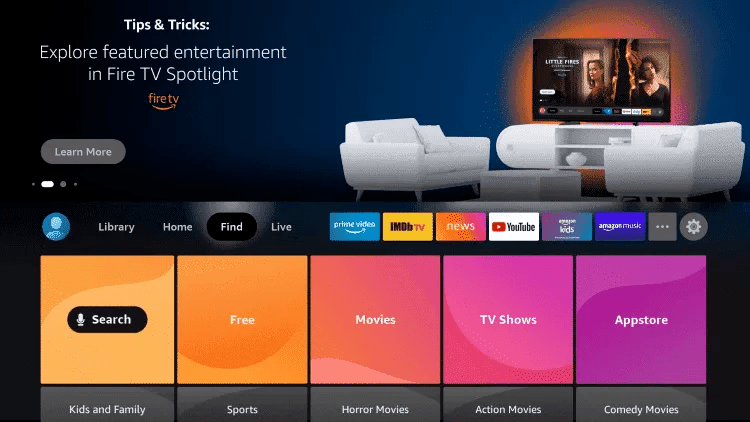
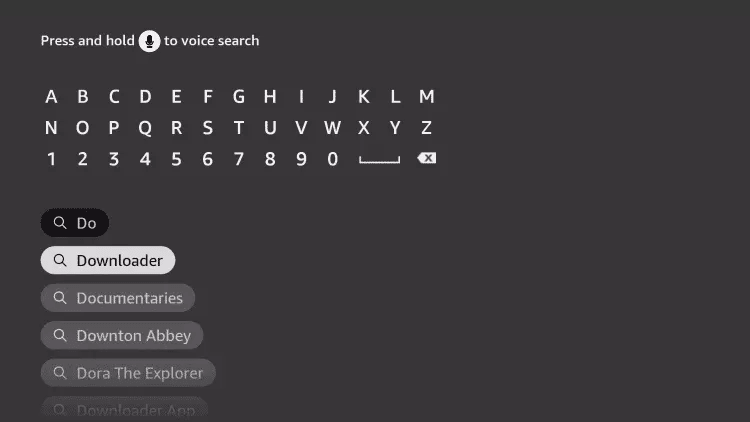
3. Search for and select Downloader.
4. Choose the Downloader app.
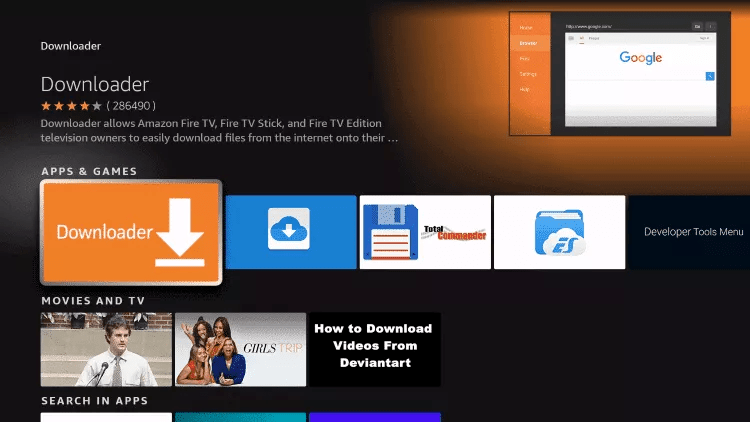
5. Click Download.
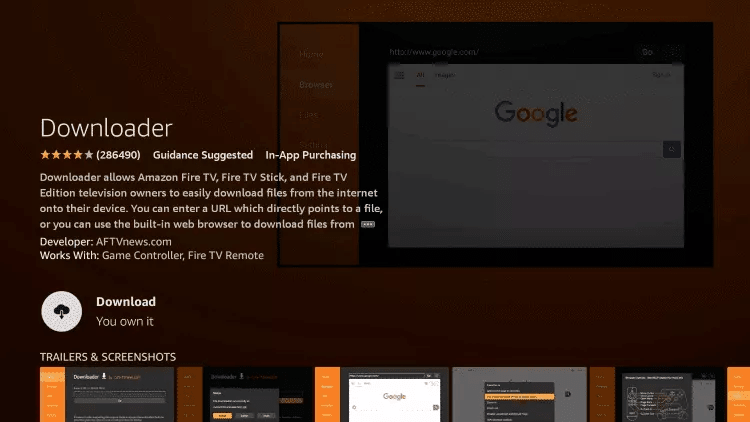
6. Once the app finishes installing click Open.
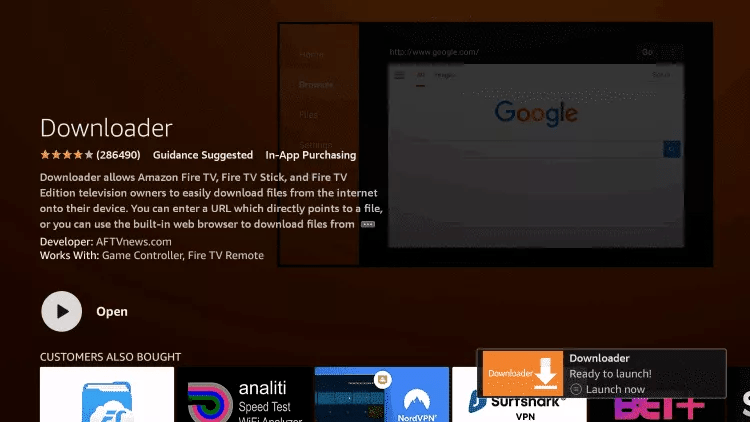
7. Return to the home screen and open Settings.
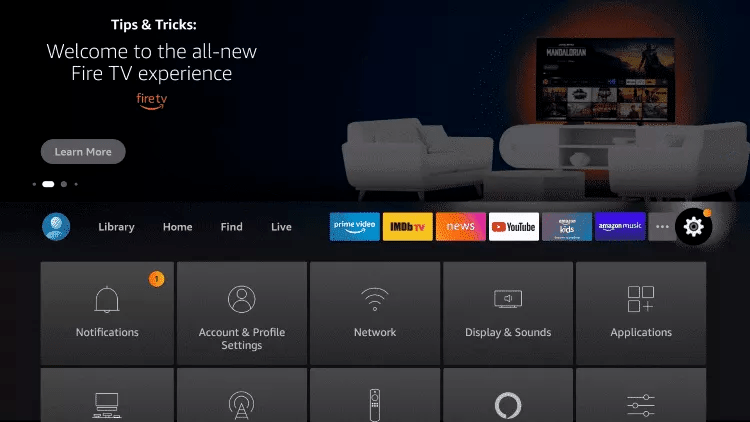
8. Click My Fire TV.

9. Choose Developer options.
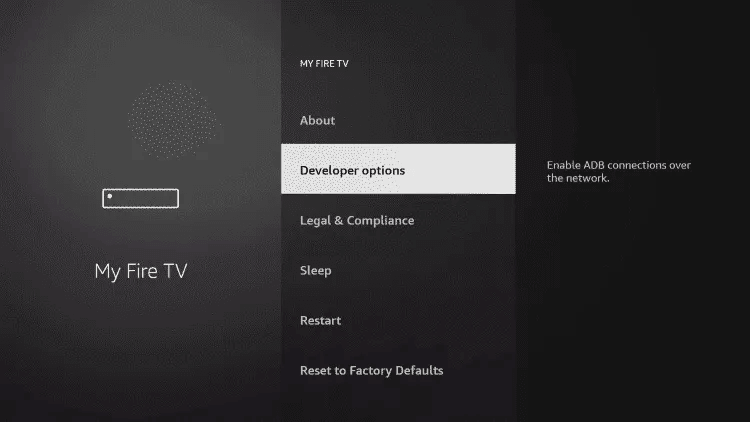
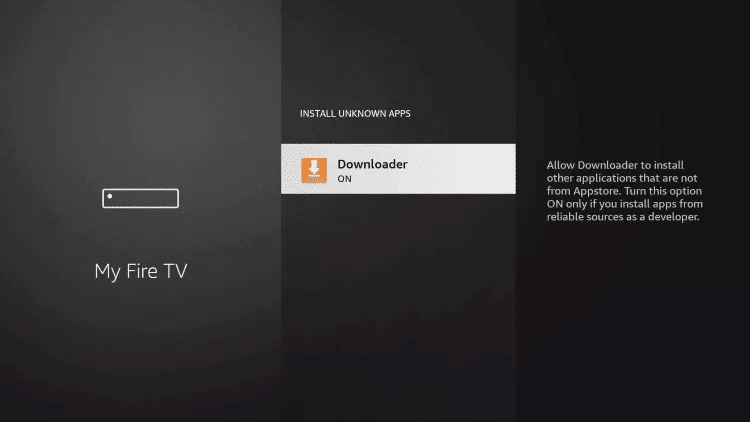
10. Click Install unknown apps.

11. Find the Downloader app and click it.

12. This will turn Unknown Sources to On for the Downloader app. This will enable side-loading on your device.
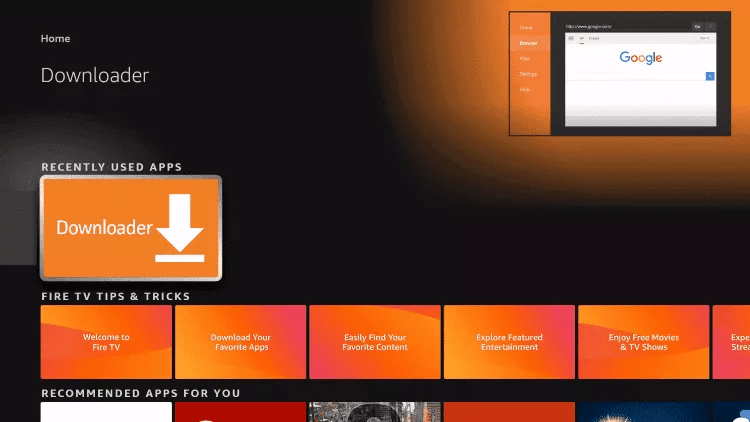
13. Launch Downloader.
14. Click Allow.

15. Click OK.

16. Type the following URL exactly as shown here: https://www.iptvsmarters.com/smarters.apk
and click Go.

17. Wait for file to download.

18. Click Install.
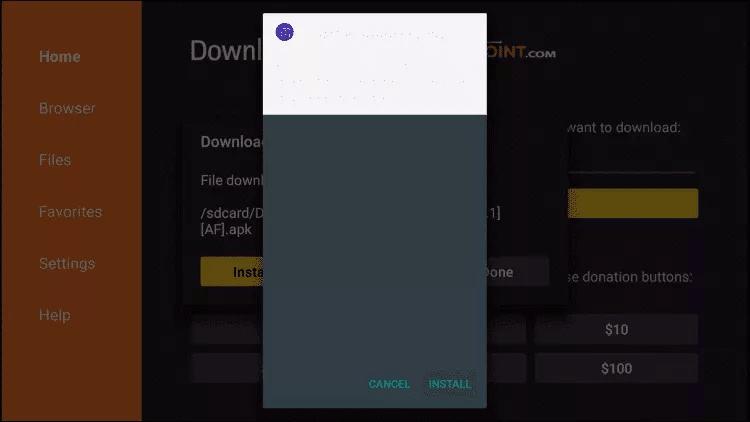
19. Click Done.
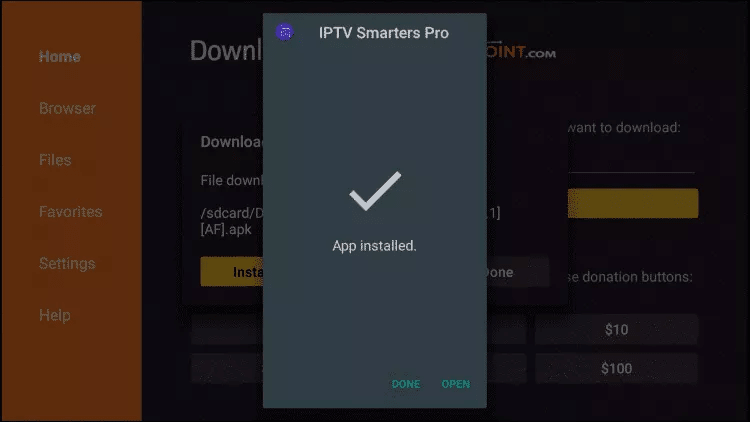
20. Open IPTV smarters then select Login with Xtream codes api.
21. Enter the login details that we sent you via Whatsapp or Email or Chat
FOR TIVIMATE
1. Type the following URL exactly as shown here: https://tivimates.com/tiviapk
and click Go.

2. Wait for file to download.
Wait for the file download to finish
3. Click Install and once the installation is completed. You can open the app.
4. Click “Add Playlist” then choose “Xtream codes“
5. Enter the login details that we sent you via Whatsapp or Email or Chat
How to setup IPTV on Android with IPTV Smarters Player
Step 1: Start by downloading IPTV Smarters app through this URL : https://www.iptvsmarters.com/smarters.apk
Step 2: Open the app once downloaded and Enter the login details.

Step 3: Enter the login details that we have provided you after you get a subscription with us
Now Click on “ADD USER” to proceed to the next section.
Step 4: Wait some seconds.
Step 5: Now click on “Live TV” icon as depicted in the image via a red arrow.
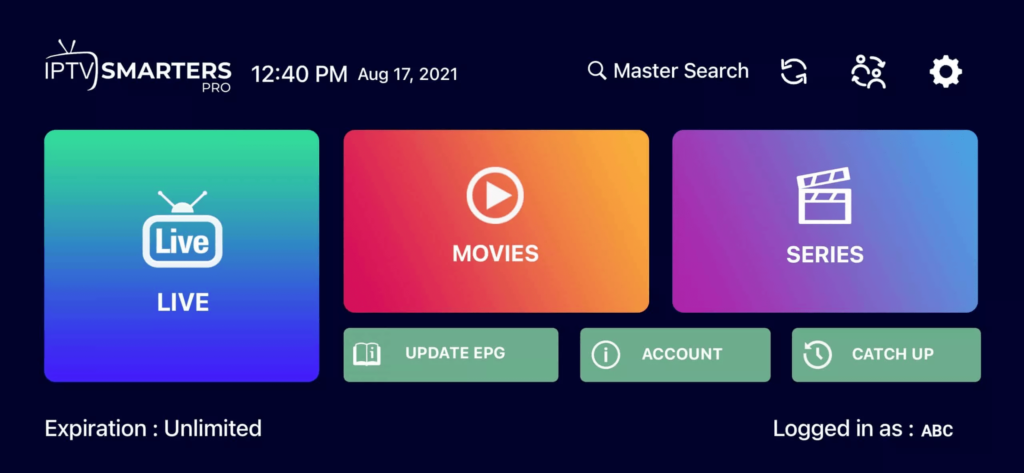
Step 6: Now you must select the channel group that you want to watch and proceed to the next section.
Step 7: Now you must click on the channel name and then double click on the small screen to turn into full screen as the final step.
Done
How to Set Up IPTV on Apple/iOS Using IPTV Smarters Player
Step 1: Download IPTV Smarters Player
Start by downloading the IPTV Smarters Player app from the Apple App Store using the following link:
https://apps.apple.com/in/app/smarters-player-lite/id1628995509
Alternatively, you can search for “Smarters Player Lite” directly in the App Store.
Install the application on your iPhone or iPad.
Step 2: Open the Application
Once the app has been installed, launch it and proceed to the login screen.
Step 3: Enter Your IPTV Subscription Details
Enter the login credentials provided to you after purchasing your IPTV subscription.
After entering your details, click “ADD USER” to continue.
Step 4: Wait for the Content to Load
Allow a few seconds for your channels, movies, and series to load.
Step 5: Access Live TV Channels
Click on the “Live TV” icon to view all available live television channels.
Step 6: Choose a Channel Category
Select the channel group or category you would like to watch, such as Sports, Entertainment, News, Movies, or International Channels.
Step 7: Start Watching
Click on your preferred channel to begin streaming.
For full-screen viewing, simply double-tap the video player screen.
Step 8: Install the EPG (TV Guide)
There is no need to manually add an EPG URL.
Simply click “Install EPG” to automatically download and activate the Electronic Program Guide (EPG).
Setup Complete
Your IPTV service is now ready to use on your Apple iPhone or iPad. Enjoy access to live TV channels, movies, series, sports, and premium entertainment content from anywhere in the world.
Need help? Contact our support team, and we’ll be happy to assist you with the setup process.